Free Multi-Platform Resizer, No Upload

Free Social Media Image Resizer

Upload one image and instantly get every size for Instagram, Facebook, X, LinkedIn, YouTube, TikTok, and Pinterest. Smart center-crop, lossless quality, and a one-click download for all 15 sizes as a ZIP. 100% private, runs in your browser.

By SEOWebster Team ·

How It Works

1

Upload one image

Drop a PNG, JPG, or WebP into the box. The largest source image gives the best results across every output size.

2

Choose format and fit

Pick JPG for smallest files, PNG for lossless, or WebP for modern compression. Use crop-to-fill for posts, fit-with-background for logos.

3

Download all sizes

Get every social media size in one click as individual files or a single ZIP. Nothing leaves your device.

Q

Quick Answer

A social media image resizer takes one source image and outputs every platform-specific size you need: 1080x1080 for Instagram posts, 1080x1920 for Stories and Reels, 1200x630 for Facebook posts, 1500x500 for X headers, 1584x396 for LinkedIn banners, 1280x720 for YouTube thumbnails, and 1000x1500 for Pinterest pins. Upload your image above to download all 15 standard sizes as JPG, PNG, or WebP in one ZIP, with no signup and no upload to a server.

What This Tool Does

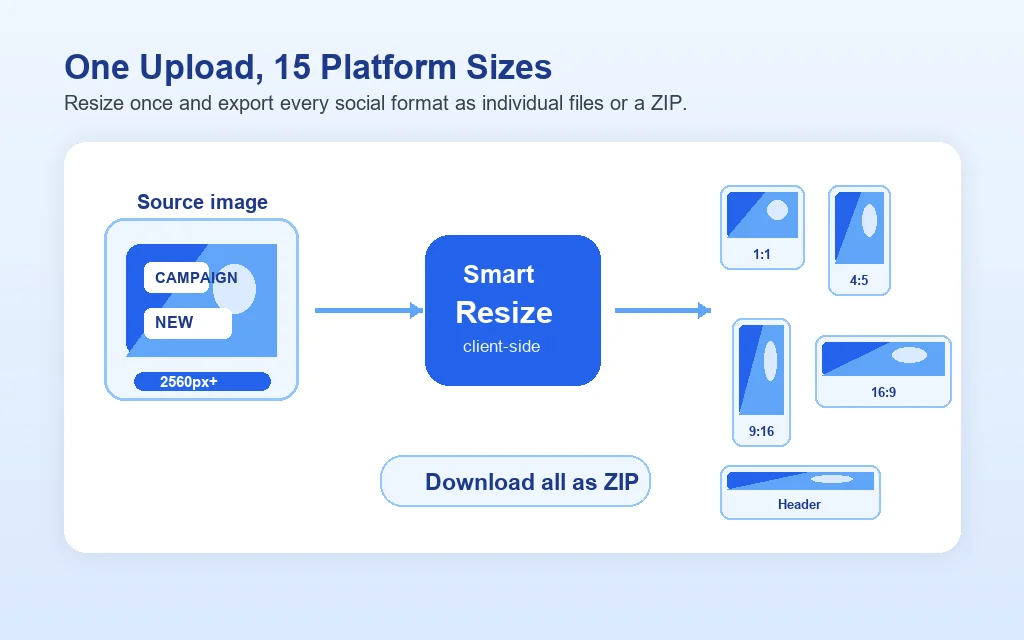
The SEOWebster Social Media Image Resizer takes one source image and produces all 15 standard social media sizes in a single batch, in your browser. There is no upload to a server, no queue, no account, and no watermark. Output formats are JPG, PNG, or WebP at your chosen quality, and you can download each size individually or grab everything as a ZIP.

Most social tools only handle one platform at a time and force you to re-upload the same image five or ten times. This resizer covers Instagram (Square, Portrait, Story, Reel), Facebook (Post, Cover), X / Twitter (Post, Header), LinkedIn (Post, Profile Banner, Company Banner), YouTube (Thumbnail, Channel Banner), TikTok (Video Cover), and Pinterest (Standard Pin, Board Cover) in one pass.

Workflow diagram showing one source image being resized into multiple social media image formats and downloaded as a ZIP

Features of This Tool

Every feature is designed to remove a step from the typical content workflow, where the same image is exported, opened, cropped, exported, and re-uploaded for each platform. With this tool, one drop replaces a 30-minute Photoshop session.

15 platform sizes in one upload

Instagram, Facebook, X, LinkedIn, YouTube, TikTok, and Pinterest covered in one pass. No re-uploading.

100% private, runs in your browser

Files never leave your device. Safe for confidential designs and unreleased product photos.

One-click ZIP download

Grab all 15 outputs in a single ZIP, named by platform and dimensions for clean asset organization.

Drag-and-drop upload

Drop a PNG, JPG, or WebP into the box, or click to browse. Maximum source size 25 MB.

Smart center-crop

Crop-to-fill keeps your subject centered across every aspect ratio with no manual recropping per output.

JPG, PNG, and WebP output

Pick the right format per use: JPG for photos, PNG for logos, WebP for the smallest modern files.

Live quality preview

Adjust the quality slider and outputs re-render instantly, so you can see compression tradeoffs before downloading.

No watermark, no signup, free

Unlimited use, every output is clean. No paywalls, no email captures, no daily quotas.

Why Use a Social Image Resizer

Posting the wrong-size image is the most common quality drop on social media, and it is also the most fixable. A purpose-built resizer rescues every other production step that follows it.

1

Avoid auto-crop disasters

Every platform crops differently. A perfectly composed shot can lose its subject when Instagram crops to 4:5 or LinkedIn to 1.91:1. Resizing to the right ratio first prevents the platform from making the choice for you.

2

Save 30 minutes per asset cycle

Manually exporting 15 sizes in Photoshop or Figma takes 20 to 40 minutes per source image. The resizer collapses that into a single drop, freeing the time for content actually worth designing.

3

Lift engagement with native sizing

Instagram and Facebook both downrank posts they have to recompress heavily. Uploading a correctly sized image preserves its sharpness and increases the share of viewers who stop scrolling.

4

Hit per-platform file size caps

YouTube's 2 MB thumbnail cap, X's 5 MB cap, and LinkedIn's 10 MB cap all reject larger uploads silently. The resizer encodes well below every cap by default.

5

Keep brand consistency across channels

Same source, same crop logic, same colour profile across every output. No more LinkedIn version that looks slightly different from the Instagram version.

6

Protect confidential designs

Server-based resizers see your file. This one runs in your browser, so unreleased product shots, NDA work, and client mocks never touch a third-party server.

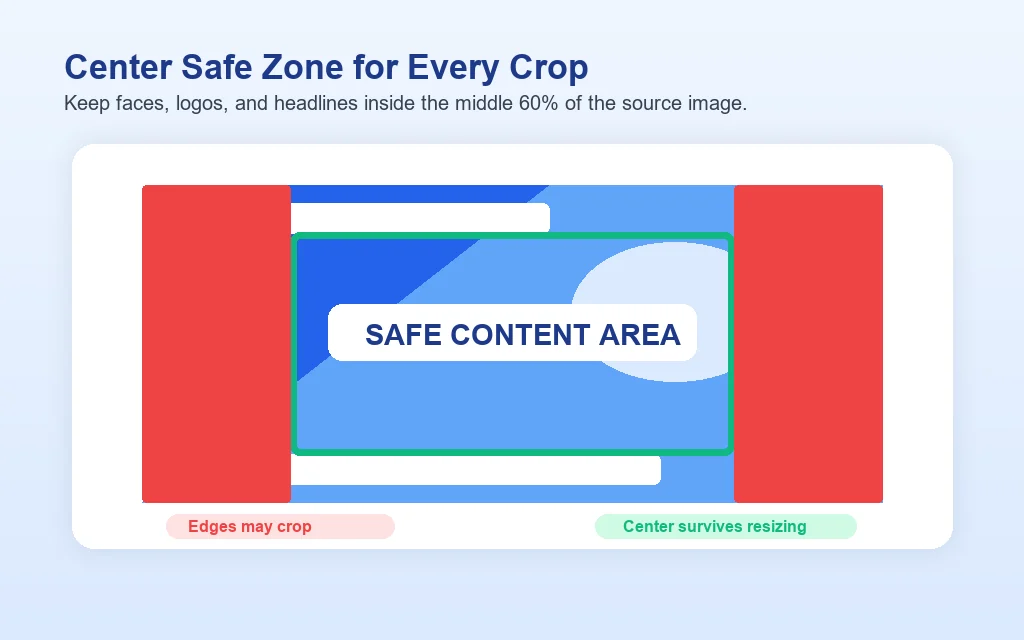
Safe zone diagram showing the center area of a social media image that survives platform crops while outer edges may be clipped

What Makes a Good Social Image

A high-performing social image is not just a pretty photo. It is a piece of micro-content engineered to survive aggressive compression, work at thumbnail size, and stop a scroll inside the first 0.3 seconds. The criteria below separate images that earn impressions from images that get scrolled past:

  • Correct native dimensions: Matches the platform's recommended pixel size to avoid recompression and crop. The resizer handles this automatically.
  • Subject in the centre 60%: Survives every aspect ratio crop, including the worst case of 9:16 to 1.91:1.
  • High contrast between subject and background: Reads at thumbnail size on a phone screen, where most impressions happen.
  • Limited text (3 to 5 words max): Anything longer becomes unreadable when downsized to a feed thumbnail.
  • Mobile-first colour palette: OLED phone screens crush deep blacks and over-saturated reds. Test on a phone, not a calibrated desktop monitor.
  • File size under the platform cap: 2 MB for YouTube thumbnails, 5 MB for X, 30 MB for Instagram and Facebook. Smaller files load faster and post more reliably.
  • Branded, not template-y: Recognisable colour, font, or layout system across every post so users know it is from you before they read the handle.

Social Media Image Checklist

Run every social asset through this 4-category checklist before publishing. The Auto-checked items are handled by this resizer; the Manual items still need a human eye.

Technical

Auto-checked
  • Correct pixel dimensions per platform
  • Aspect ratio matches the surface (1:1, 4:5, 9:16, 16:9, 1.91:1, 4:1)
  • File size under the platform cap
  • Output format accepted by the target platform
  • No upscaling beyond the source resolution

Composition

Manual
  • Subject sits inside the centre 60% safe zone
  • Headlines and faces survive thumbnail-size rendering
  • No critical content within 5% of any edge
  • 3 to 5 words of overlay text maximum
  • Visual hierarchy reads in under one second

Color and Contrast

Manual
  • Strong contrast between subject and background
  • Text passes WCAG AA contrast against its backdrop
  • Colour palette tested on an actual phone screen
  • Brand colour visible in the first quick glance
  • No reliance on subtle gradients that compress poorly

Strategy

Manual
  • Image complements (not duplicates) the post copy
  • Recognisable as your brand without reading the handle
  • Aligned with current campaign or content series
  • Alt text written for screen readers and SEO
  • Filename uses descriptive keywords, not IMG_1234

How Image Resizing Works

The resizer is fully transparent about how each output is produced. Knowing the steps lets you anticipate the result and pick the right input. The pipeline runs entirely in your browser using the HTML Canvas API, with no third-party processing:

Step What Happens Best Output Range
1. DecodeSource image read into the browser as an Image objectSource 2,560 px or larger on the long side
2. Aspect calcSource ratio compared to each target ratioSquare or 9:16 sources adapt cleanest
3. Crop / FitCenter-crop in cover mode, or letterbox with chosen background in contain modeCover mode for photos, contain mode for logos
4. DownscaleBicubic-style smoothing at high quality, never upscalesOriginal quality preserved at 90%+ slider
5. EncodeJPG, PNG, or WebP at chosen quality via canvas.toBlobJPG 90% for general use; PNG for logos
6. PackageEach output named by platform, key, and dimensions; ZIP built client-sideAll 15 sizes in a single download

Quality is the only setting that meaningfully affects file weight. JPG and WebP at 90% are visually identical to 100% at most viewing sizes but roughly half the file size. PNG ignores the slider because it is lossless.

Social Media Image Sizes

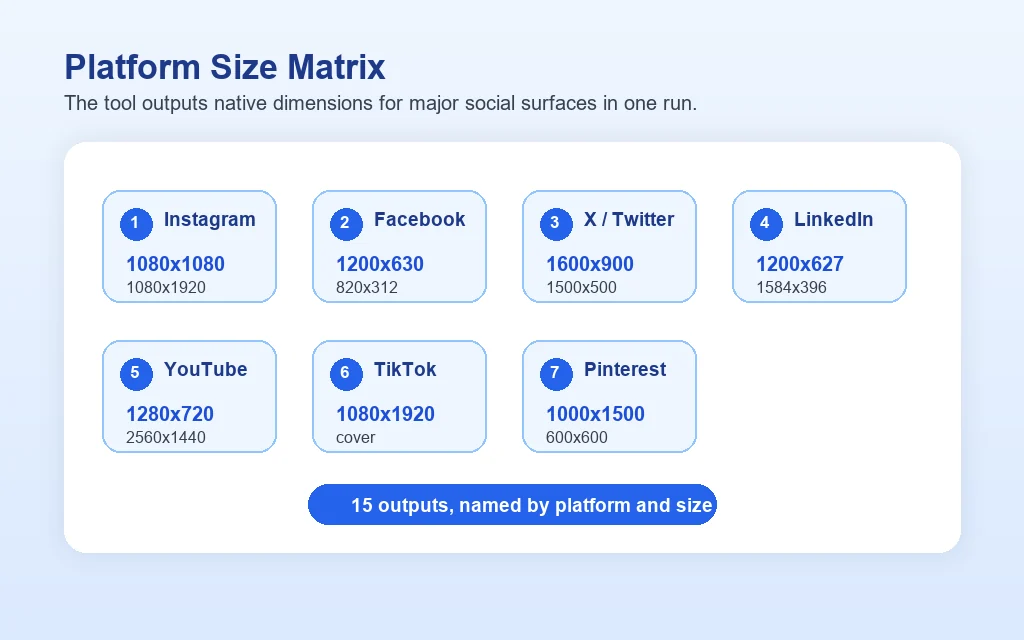
Every platform has its own optimal image dimensions, and posting at the wrong size leads to ugly auto-cropping, blurry rendering, or a downscaled preview that no one clicks. Here are the current 2025-2026 sizes the resizer outputs:

Platform size matrix listing native social media image dimensions for Instagram, Facebook, X, LinkedIn, YouTube, TikTok, and Pinterest
Platform Use Case Dimensions Aspect Ratio
InstagramPost (Square)1080 x 10801:1
InstagramPost (Portrait)1080 x 13504:5
InstagramStory / Reel1080 x 19209:16
FacebookPost / Link Preview1200 x 6301.91:1
FacebookCover Photo820 x 3122.63:1
X (Twitter)Post Image1600 x 90016:9
X (Twitter)Header1500 x 5003:1
LinkedInPost Image1200 x 6271.91:1
LinkedInProfile Banner1584 x 3964:1
LinkedInCompany Page Banner1128 x 1915.91:1
YouTubeThumbnail1280 x 72016:9
YouTubeChannel Banner2560 x 144016:9
TikTokVideo Cover / Profile1080 x 19209:16
PinterestStandard Pin1000 x 15002:3
PinterestBoard Cover600 x 6001:1

For best results, upload a source image at least 2560 pixels on the longest side. The resizer never upscales, so smaller sources will produce sharper output for everything except YouTube channel banners. To check character limits before publishing, pair this with our social media character counter.

Crop to Fill vs Fit with Background

The resizer offers two ways to handle the aspect-ratio gap between your source image and each output size. Picking the right one for your use case prevents an entire batch of awkward outputs:

  • Crop to Fill (default): The image scales to cover the canvas, then the edges are center-cropped. Best for photos, lifestyle shots, and any image where the subject is roughly centered. Used for almost all post imagery.
  • Fit with Background: The whole image is scaled to fit inside the canvas, with empty space filled by your chosen background colour. Best for logos, product cutouts, infographics, and anything that must not be cropped.

If your subject is off-centre, the safest workflow is to first crop the source image so the subject sits in the middle, then run it through the resizer in Crop to Fill mode. That keeps the focal point intact across every aspect ratio.

JPG vs PNG vs WebP for Social

The output format you choose changes both file size and how each platform compresses your upload. Quick rules:

  • JPG: Use for photos, lifestyle shots, screenshots with little text. Smallest files, every platform accepts them, no transparency.
  • PNG: Use for logos, screenshots with sharp text, anything that needs transparency. Larger files but no compression artefacts.
  • WebP: Use when uploading to LinkedIn, X, Pinterest (which all accept WebP) for the smallest possible file at high quality. Note: Instagram and Facebook silently re-encode WebP to JPG, so save WebP only for platforms that preserve it.

Whichever format you pick, every social platform will recompress your image on upload. That is normal. Uploading at 90% quality JPG matches what platforms target internally and produces near-identical visual quality to 100% with half the file size. To compress further before uploading, see our image compressor.

Image SEO and Social Engagement

Correctly-sized social images are not only an aesthetic upgrade. They affect organic reach, search visibility, and conversion in measurable ways. Here is how each output channel responds:

Search engines reward fast, well-sized images

Google's Core Web Vitals score the Largest Contentful Paint, which is almost always a hero image on a content page. A correctly-sized 1200x630 image at 90% JPG loads in roughly 100 ms on a 4G connection, while an unresized 4 MB original takes 800 ms. That single optimisation is the largest CWV lever for most blog posts. Pair this resizer with our image compressor to push file weight down further before publishing.

Native sizing lifts social reach

Every major social algorithm penalises posts the platform has to recompress heavily. Instagram and Facebook silently downrank photos that arrive larger than 30 MB; YouTube rejects thumbnails over 2 MB outright. The resizer encodes safely below every cap by default, which preserves the algorithm's quality signal and lifts impression share. To pair tighter copy with cleaner images, run captions through our social media character counter before publishing.

Cross-platform consistency builds brand recall

When the same source image is cropped manually in Photoshop for each platform, small inconsistencies leak through, including different colour casts, different focal points, different padding. The resizer applies one centre-crop logic to every output, so a follower seeing your post on Instagram and again on LinkedIn registers it as the same brand asset, not two slightly-different visuals. This compounds into stronger brand recall over a 90-day campaign window.

Topical authority for marketers

Marketers who consistently publish correctly-sized assets across 5+ platforms send a strong topical signal to both search engines and AI assistants about their category expertise. For a fuller workflow, our social media SEO services cover the full chain from production to scheduling and analytics, and the best social media management tools guide compares the platforms that handle scheduling and reporting.
Top Social Media Image Mistakes

1

Uploading one size to every platform

A 1200x630 Facebook-sized image gets cropped to a square on Instagram, padded with black bars on Stories, and stretched on YouTube. Always export per platform. The resizer handles this in one batch.

2

Putting critical text near the edges

When the source crops to 9:16 or 4:1, anything in the outer 20% gets clipped on at least one platform. Headlines, faces, and logos must sit in the middle 60% of the source.

3

Exporting as PNG when JPG would do

A 1080x1080 photo as PNG is roughly 2 to 5 MB; the same photo as 90% JPG is 200 to 400 KB. Use PNG only for logos and graphics with sharp text or transparency. Use JPG for everything else.

4

Designing only at desktop scale

More than 80% of social impressions happen on phones. A composition that looks great at 100% on a 27-inch monitor often falls apart at thumbnail size on a 6-inch screen. Always preview on a phone before publishing.

5

Upscaling small source images

Trying to turn a 600 px source into a 2560 px YouTube channel banner only adds blur. The resizer never upscales for this exact reason. Start with a source at least 2560 px on the longest side, or use a smaller subset of platform sizes.

Common Use Cases

Different teams use a multi-platform image resizer for very different reasons. Pick the persona closest to your role to see the highest-leverage workflows.

Creators & Influencers

  • Repurpose one hero shot across Reels, Stories, Pinterest pins, and YouTube thumbnails in one batch
  • Post correctly sized brand-deal photos that survive sponsor brand guidelines
  • Build a consistent grid aesthetic on Instagram by always uploading native 1080x1080 or 1080x1350
  • Save the 30 minutes per video previously spent re-exporting in Photoshop

Social Media Marketers

  • Produce campaign-ready assets across 5+ platforms from a single design file
  • Ensure every paid creative hits the ad platform's spec without rework
  • Keep branded headers, banners, and posts visually consistent at every viewport
  • Speed up A/B test cycles by quickly resizing and uploading variants

SEO Agencies

  • Reduce client image file sizes for Core Web Vitals improvements on landing pages
  • Standardise client OG images at 1200x630 for richer SERP previews
  • Batch-prep social card variants for guest posts, link-bait launches, and PR pushes
  • Keep client confidential mocks safe by running everything client-side

Brands & Ecommerce

  • Convert one product hero into all marketplace and social listing sizes
  • Refresh seasonal banners across Instagram, Facebook, X, LinkedIn in one pass
  • Keep pre-launch product imagery confidential under NDA workflows
  • Cut the design team's repetitive sizing work, freeing them for original creative

Why Choose Our Image Resizer

Most online image resizers either lock features behind a paywall, force a sign-up, upload your file to a server, or cover only one platform at a time. Here is how the SEOWebster Social Media Image Resizer compares to the typical SaaS resizer:

Feature SEOWebster Most Other Resizers
Sizes per upload15 in one batch1 to 3 (per platform)
Privacy100% client-side, no uploadFiles uploaded to a server
Account requiredNoOften yes after first use
WatermarkNeverOn free tier
ZIP downloadYes, all 15 in one clickPer-image only
Format optionsJPG, PNG, WebPUsually JPG only
Crop and fit modesBothCrop only
Daily quotaUnlimited3 to 10 per day on free tier

The SEOWebster resizer was built for full-time social marketers, in-house design teams, and creators who refuse to recover the same 30 minutes from every asset cycle. Free, unlimited, fully private, and covers every standard platform size out of the box.

Tips for Better Social Images

1

Design at the largest size first

Start your design at 2560 pixels on the longest side (YouTube channel banner size). Downscaling preserves sharpness; upscaling never does.

2

Keep critical content in the centre 60%

Aspect ratios vary from 9:16 to 5.91:1, so anything in the outer 20% on either side will be cropped on at least one platform. Faces, logos, and headlines should sit comfortably in the middle 60% of your source image.

3

Use vertical sources for Story-heavy strategies

If most of your output is Stories, Reels, and TikTok, design the source at 1080 x 1920 (9:16). Cropping a vertical source to a horizontal banner loses less critical content than the reverse.

4

Check legibility on mobile first

More than 80% of social impressions happen on phones. After resizing, view each output at thumbnail size on a phone screen and confirm headlines and faces are still readable.

5

Pair with the right thumbnail strategy

For YouTube specifically, the resizer outputs the correct 1280 x 720 dimensions but a sharp thumbnail also needs strong contrast and clean text. Run yours through our YouTube thumbnail analyzer before publishing.

6

Stay under each platform's file limit

Instagram: 30 MB. Facebook: 30 MB. X: 5 MB. LinkedIn: 10 MB. Pinterest: 32 MB. YouTube thumbnail: 2 MB. The resizer outputs well below these limits at 90% quality JPG.

Frequently Asked Questions

What is the best image size for social media?
There is no single best size because each platform crops differently. The most universal posting size is 1200 x 1200 (square), which renders cleanly on Instagram, Facebook, LinkedIn, and X. For Stories, Reels, and TikTok, use 1080 x 1920 vertical. The resizer outputs all 15 standard sizes in one batch so you do not have to choose.
Does this tool upload my image to a server?
No. All resizing happens in your browser using the Canvas API. Your image never leaves your device. We do not store, log, or analyze the files you process. This makes the tool suitable for confidential designs, unreleased product photos, and client work under NDA.
What size should I upload as my source image?
For best output across every platform, upload at least 2560 pixels on the longest side and use a 1:1 (square) or 9:16 (vertical) aspect ratio. The resizer never upscales, so a small source image will produce a small YouTube channel banner. Square sources adapt well to most platforms with minimal cropping.
Why does my image look cropped on Instagram or LinkedIn?
When the source image and target aspect ratio differ, something has to give. In Crop to Fill mode the resizer center-crops the edges, so off-centre subjects get clipped. Switch to Fit with Background to preserve the whole image (with coloured borders), or recompose your source so the subject is centred before resizing.
What is the difference between PNG, JPG, and WebP for social posts?
JPG is best for photos and produces the smallest files. PNG is best for logos and graphics with transparency or sharp text. WebP is the most modern format with better compression than JPG, accepted by LinkedIn, X, and Pinterest, but Instagram and Facebook silently re-encode it to JPG. For mixed strategies, JPG at 90% quality is the safe default.
Can I batch resize multiple source images at once?
Currently the tool resizes one source image into all 15 platform sizes per run. To process multiple source images, run the tool once per image and rename or organize the resulting ZIPs. A multi-source batch mode is on our roadmap.
Will the resizer reduce my image quality?
Downscaling always loses detail by definition, but the resizer uses high-quality bicubic-style image smoothing built into the browser, plus your chosen quality setting (60% to 100%). PNG output is fully lossless. JPG and WebP at 90% quality are visually identical to the original at most viewing sizes. The resizer never upscales beyond the source size, which would only add blur.
Are the social media sizes up to date?
Yes. We track each platform's official documentation and update the size set when a platform changes its rendering. The current version reflects 2025 to 2026 specs across Instagram, Facebook, X, LinkedIn, YouTube, TikTok, and Pinterest.

Related Free Tools

Building a full social content workflow? Pair this resizer with our other free image and social tools.

Related Guides

Want a full social media SEO strategy?

Our team builds end-to-end content and channel growth strategies for creators, agencies, and brands.